Composing an Avatar Message
Choose a fun avatar and background to decorate your message.
If you want to compose a voice message instead, see Composing a Voice Message.
To compose an avatar message
1. In the Inbox, tap the overflow menu  and then tap New Avatar message.
2. In the Compose Message screen, select an avatar and a background. To change the avatar, tap  . To change the background, tap
  . View the available avatars or backgrounds, select the one you want and then tap Done.
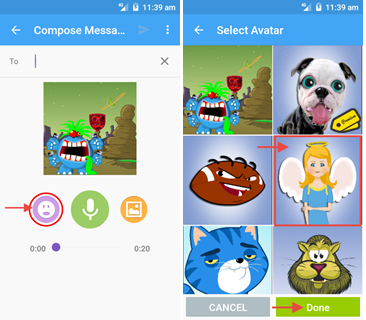
Note: You can purchase an avatar or background that has a sales tag  attached to it. Tap the image and then tap Buy.
Note: Additionally, when you subscribe to Premium service, you can use images from your photo gallery as custom backgrounds.
3. Tap Record  , speak into your phone and then tap Stop
  to stop the recording.
● To preview your message, tap the play button in the playback controls.

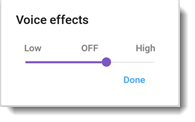
● To adjust the pitch, tap Voice effects level or Voice effects in the overflow menu.
● To record your message again, tap Re-record in the overflow menu.
4. In the To: field, select a contact or enter a phone number or valid email address. Tap Send.
The message will be sent to the recipient's Visual Voicemail inbox, or as a link in a text message or email message (if the recipient does not have Visual Voicemail).
See also: