Replying to Sprint Visual Voicemail Messages
To reply to a Sprint Visual Voicemail message follow these steps:
| 1. | While
in the Message Playback screen, tap  (Reply). (Reply).— or — Press  and then tap . You will be prompted to select the type of message to send. and then tap . You will be prompted to select the type of message to send.
|
| 2. | If you want the reply to be sent as a text message (SMS), tap SMS message and see Replying with a Text Message (SMS) for further instructions. |
If you want the reply to be sent as voicemail, tap Audio message. The Reply screen will be displayed and recording will begin.
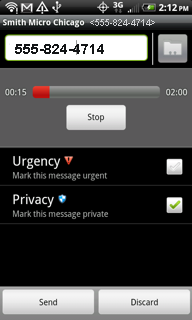
| 3. | Record your message and tap Stop when finished recording your message. |
| 4. | If
you would like to mark your message as Urgent  or Private or Private
 , check the box , check the box  next to the desired option.
 |
Note: Pressing prior to sending the message displays a number of additional options, including reviewing your message, appending additional audio, or re-recording the message entirely.
| 5. | Tap Send to send your message or Discard to discard your message. |