Visual Voicemail Inbox
To open Visual Voicemail
Tap the Voicemail icon  on the Home Screen or select Voicemail from your device's Applications list.
The Inbox displays the messages you have received. You can see at a glance which messages are new (highlighted in bold) and which ones you have already listened to (not highlighted).
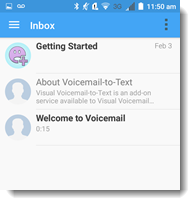
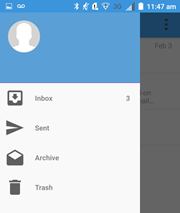
The active folder is displayed in the action bar. To switch to a different folder, tap the menu icon to display the other folders.
Note: If you are subscribed to the Premium service or the free trial, your voice messages will be transcribed in the Inbox. Otherwise, in the Basic plan your messages will not be transcribed. You can upgrade to Premium service.
The overflow menu  contains context-specific actions, depending on the screen you are viewing at the moment.
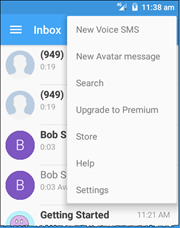
When you tap the overflow menu from the Inbox, the following actions are available:
● New Voice SMS — Record a voice SMS message.
● New Avatar message — Record a voice message with avatar.
● Search — Search for messages from specific callers.
● Upgrade to Premium — Manage your subscription.
● Store — Open the Store page to make in-app purchases.
● Help — Open the Help menu.
● Settings — Open the Settings menu.
Select, Move, and Delete Messages
You can select messages in the following ways:
● Tap a message to open it in the message playback screen.
● Long tap (press and hold) a message to open the selection mode. In selection mode, you can select additional messages and then tap the overflow menu to archive or mark the messages as read or unread.
● Swipe a message from right to left to delete the message. The message will be moved to the Trash folder.
● Swipe a message from left to right to mark it as read or unread.